
Primary Audience: All Internal Users
Customers can customize how they receive Platform notifications, including email, text message, and app push notifications.
Notification preferences can be managed directly from the Customer Portal, and internal users can also update notification settings on behalf of clients in the Team Hub.
Notification Preferences Overview
The Notification Center allows Customer Portal users to:
- Choose how notifications are received
- Enable or disable notification channels
- Manage marketing communication preferences
- View historical notifications in one centralized location
Customers can choose to receive notifications through:
- Text message
- App push notifications
All notifications are stored in the Notifications page within the Customer Portal, allowing clients to review previous notifications and open the original related record directly from the notification.
Default Notification Settings
If a customer has a valid email address or phone number on their account, email and text notifications will default to On.
App push notifications are also enabled by default for all users.
Customers can unsubscribe from marketing communications through the Personalized Updates notification category.
Important Notes
- If a customer does not have an email address or phone number on their account, notification settings will still default to On and will activate once contact information is added.
- If a customer disables Contract notifications, the Team Hub will display an error message when an internal user attempts to send a contract. The internal user can re-enable the notification setting to allow the contract to be delivered.
How Customers Manage Notification Settings
Customers can update their notification preferences directly from the Customer Portal.
To update notification settings:
- Click the Notifications button from the Customer Portal home page
- Select the Settings button in the upper-right corner
- Update notification preferences as desired within Notification Settings


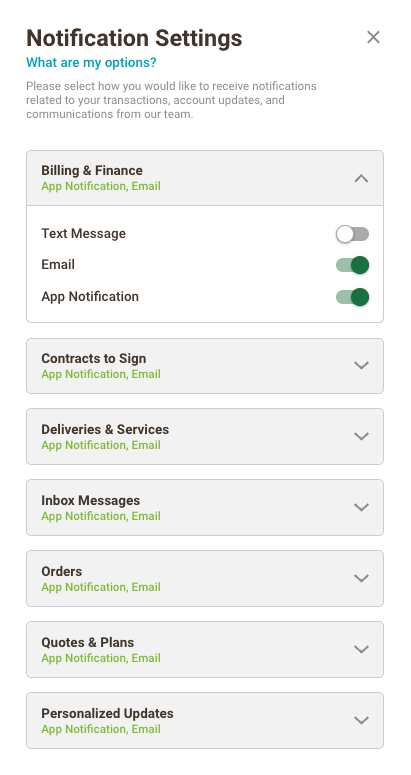
Managing Client Notification Settings from the Team Hub
Internal users of all permission levels can also update notification settings for customers.
Example: A customer asks their agronomist to stop receiving text messages and only receive email notifications.
To update notification settings on behalf of a customer:
- Navigate to the Clients tab in the Team Hub
- Open the client profile
- From the Summary dropdown, select Client Profile
- Scroll to the Notification Settings section near the bottom of the page
- Update notification preferences as needed
- Click Save

Pausing System Notifications for a Client
The Send notifications toggle at the top of the Notification Settings section controls whether a Client receives system notifications across all linked accounts and notification channels.
When enabled, the Client will receive system notifications such as:
- Billing & Finance
- Orders
- Quotes & Plans
- Contracts to Sign
- Other account activity notifications
Marketing communications and account-related messages, such as password reset emails, are not affected by this setting and will continue to be sent.
Turn Send notifications off to pause system notifications for the Client across all accounts and channels.
Only Partner Admin and Admin users can change this setting. All other Team Hub roles can view the toggle, but it is read-only.
If the Send notifications toggle is unavailable and you would like to enable it, contact the Partner Experience Team for assistance.
Additional Information
For more information about customer notification types and categories, review the Customer Notification Categories
If you have any questions related to this article or anything else, please reach out to our Partner Enablement Team at help@agvend.com or at 512-812-9399.